

Salesforce passkeys provide phishing-resistant authentication using device-based cryptographic credentials. Instead of relying only on passwords or verification codes, users verify their identity through Windows Hello, Touch ID, Face ID, a device PIN, a password manager or a compatible physical security key.
But what happens when a user:
- Replaces or loses their registered device
- Cannot access Windows Hello or Touch ID
- Moves to a new laptop or mobile device
- Deletes the passkey from their password manager
- Encounters a passkey synchronization issue
- Needs temporary access from another trusted device
Salesforce provides supported recovery methods for these situations. Administrators should use these controlled options instead of disabling security settings or attempting to work around Salesforce authentication.
Security note: In this article, “bypass” means using a Salesforce-supported temporary access or account recovery method. It does not mean circumventing MFA or accessing an account without authorization.
What Is Salesforce Passkey Authentication?
A passkey is a phishing-resistant authentication credential based on public-key cryptography.
When a user creates a passkey, two cryptographic keys are involved:
- A public key is registered with Salesforce.
- A private key remains protected by the user’s device, security key or credential provider.
During authentication, Salesforce sends a challenge that can be completed only with the corresponding private key. The user approves the request using a local method such as biometric verification, a device PIN or a hardware security key.
Because the private key is not transmitted to Salesforce and cannot be entered into a fraudulent login page, passkeys offer much stronger protection against phishing than passwords and traditional one-time codes.
To understand why Salesforce is moving toward these stronger verification methods, read our complete series:
- Salesforce Phishing-Resistant MFA—Part 1
- Salesforce Phishing-Resistant MFA—Part 2
- Salesforce Phishing-Resistant MFA—Part 3
Why Can a Salesforce Passkey Stop Working?
Although passkeys are designed to improve both security and usability, access problems can occur when the credential or its underlying authenticator is no longer available.
Common situations include:
The User Changed Devices
A passkey stored locally on an old laptop may not automatically be available on a replacement device.
Some passkeys can synchronize through a credential provider, but availability depends on the device, browser, operating system, password manager and organizational security policies.
The Device Was Lost, Damaged or Reformatted
If the private credential was stored only on that device, the user may no longer be able to complete the passkey challenge.
The Biometric or Device Authentication Changed
Changes to Windows Hello, Touch ID, Face ID, a device PIN or the device’s security configuration can affect access to the stored passkey.
The Passkey Was Deleted
A user may accidentally remove a passkey from the operating system, browser, password manager or physical security key.
The User Is Signing In From a Different Device
A passkey may be available only through the device or credential provider on which it was created. Users may therefore require an approved recovery method before registering another passkey.
Method 1: Generate a Temporary Verification Code
The recommended short-term recovery option is an MFA Temporary Verification Code generated by an authorized Salesforce administrator.
This code allows the user to complete MFA temporarily when their registered verification method is unavailable. Salesforce lets the administrator set an expiration period between one and 24 hours.
The code should be used only after the administrator confirms the user’s identity through an approved internal process.
How an Administrator Generates the Code
- Sign in to Salesforce with administrator access.
- Open Setup.
- Navigate to Users → Users.
- Open the affected user’s record.
- Find Temporary Verification Code.
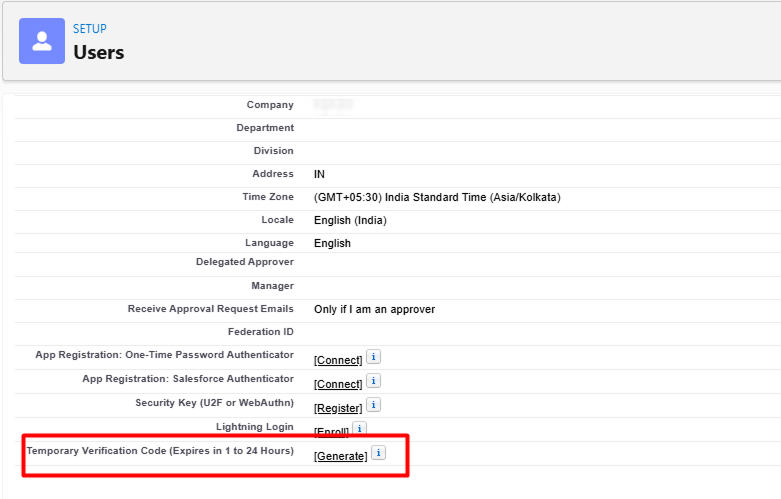
- Select Generate.
- Choose an expiration period from one to 24 hours.
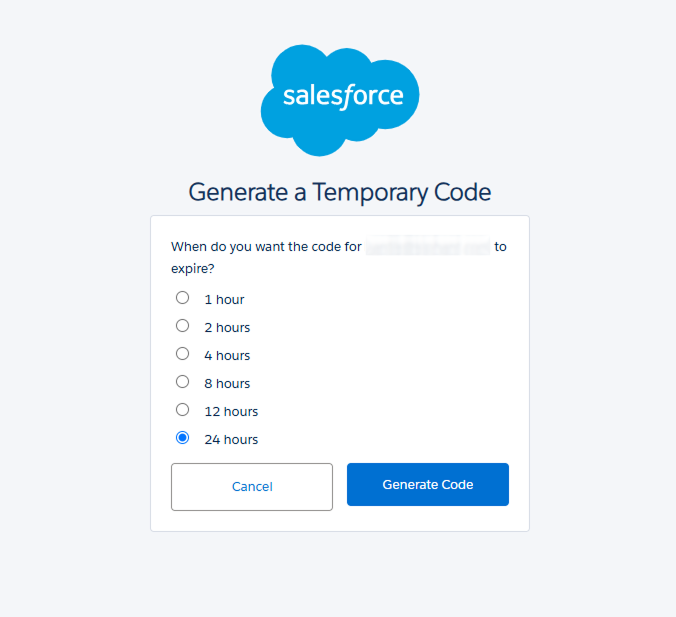
- Generate the code.
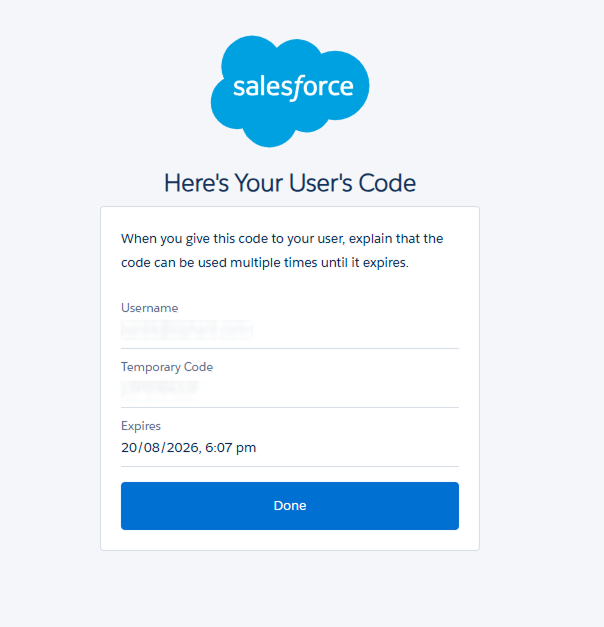
Provide it to the verified user through a secure communication channel.
How the User Uses the Code
The user begins the standard Salesforce login process. When Salesforce requests identity verification, the user selects the applicable alternative verification option and enters the temporary code provided by the administrator.
After access is restored, the user should register or reconnect an approved passkey as soon as possible.
Security Controls for Temporary Codes
Organizations should implement the following controls:
- Verify the user’s identity before generating a code.
- Use the shortest practical expiration period.
- Never send the code through an unverified personal email address.
- Do not post the code in a public or shared Slack channel.
- Do not store the code in a support ticket after use.
- Expire the code early when it is no longer required.
- Review the login and identity verification history for suspicious activity.
- Require the user to restore a permanent verification method promptly.
A temporary verification code takes priority over other registered MFA methods during the login process. It should therefore be handled as a sensitive, short-lived credential.
Method 2: Salesforce CLI Authentication
Users can also authenticate through the Salesforce CLI using supported authentication methods, including login tokens and web-based OAuth flows. This provides secure access for development and automation scenarios without requiring a passkey to be available on the local machine, subject to the organization’s authentication and security policies.
These authentication options provide flexibility for legitimate users while preserving the security benefits of passkey-based authentication.
To verify whether the same Salesforce user can register and use passkeys across multiple devices, perform the following steps.
Steps to Perform
- Device 1: Log in using the Salesforce username and password.
- Device 1: When prompted, register a passkey and verify that the login is successful.
- Device 1: Authenticate in VS Code.
- Device 1: Confirm that the existing session on the original device remains active.
- Remove/delete the Built-In Authentication (refer to Section 2.1).
- Device 2: Log in using the Salesforce username and password.
- Device 2: When prompted, register a passkey and verify that the login is successful.
- Device 2: Authenticate in VS Code.
- The user should now be able to access the org using Salesforce CLI from both devices (refer to Section 2.2).
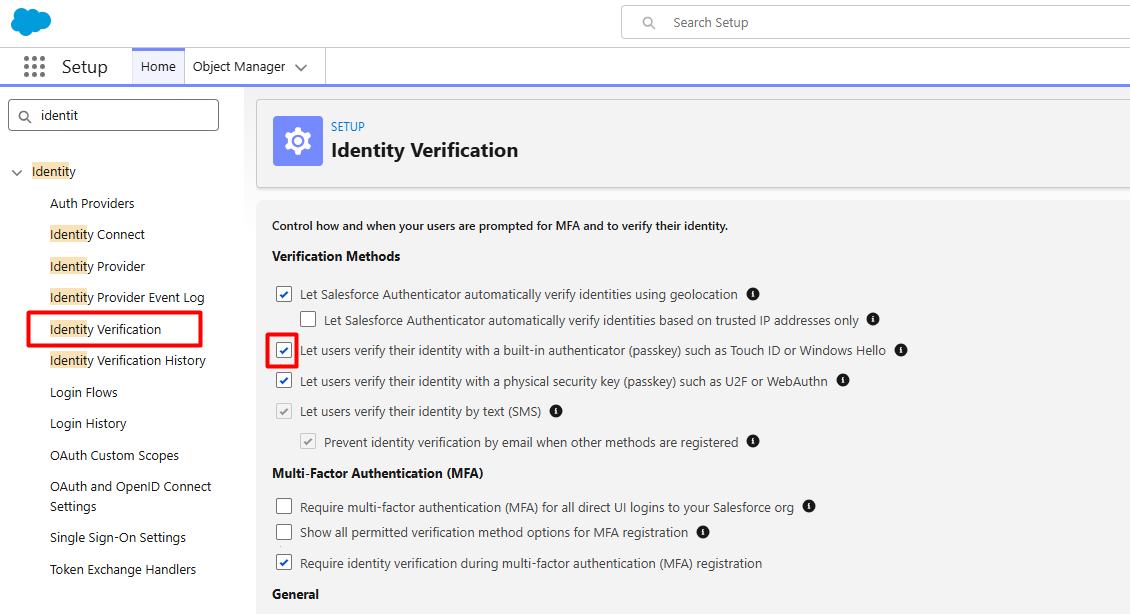
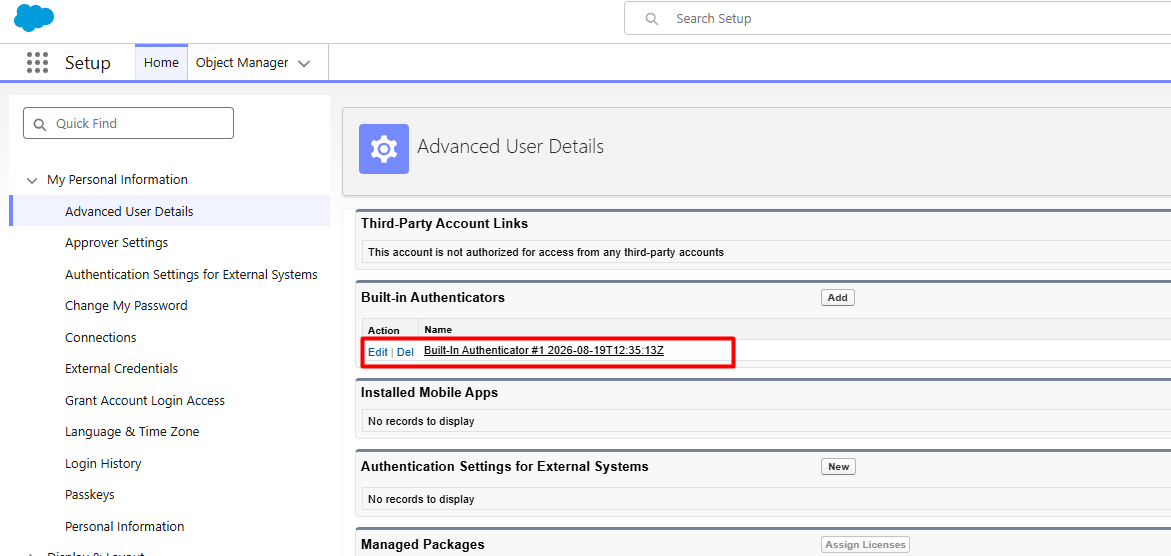
Remove the Built-In Authentication
Navigate to Setup → Identity → Identity Verification.
-
Enable “Let users verify their identity with a built-in authenticator such as Touch ID or Windows Hello.”
-
Setup Identity Page
- Next, navigate to User → Settings → Advanced User Details → Built-in Authenticators.
-
Delete the Built-in Authenticator.
Does Salesforce CLI Bypass Passkey Authentication?
No. Salesforce CLI should not be described as a method for bypassing passkeys.
When a Salesforce org has already been authorized in Salesforce CLI, a command such as:
sf org open –target-org UATOrg
can open the org using the authorization already stored for that CLI environment. The browser may not display the usual interactive login page because the CLI is using an existing authorized session or OAuth credential.
This is not an authentication bypass.
It means authentication was completed earlier and a valid authorization remains available. The ability to open an org depends on:
- The original authorization method
- The validity of the stored OAuth credential
- Salesforce session policies
- Connected App policies
- Token revocation
- The user’s account status
- The organization’s security configuration
CLI credentials should be protected as carefully as any other authenticated session.
Secure Salesforce CLI Practices
- Use a dedicated development or integration identity where appropriate.
- Apply least-privilege permissions.
- Do not share authorized CLI environments.
- Revoke authorization from lost or decommissioned devices.
- Avoid exposing access or refresh tokens in scripts and logs.
- Use approved OAuth flows.
- Review Connected App and session policies.
- Reauthorize the org when required by organizational policy.
What About SSO Users?
Organizations using Single Sign-On may still see a Salesforce passkey prompt if Salesforce does not receive sufficient authentication-context signals from the identity provider.
To prevent unnecessary duplicate prompts, the identity provider and Salesforce configuration must communicate that the SSO authentication meets the organization’s MFA requirements.
This may involve:
- Reviewing SAML or OpenID Connect authentication context
- Confirming the identity provider’s MFA method
- Checking Salesforce session and assurance requirements
- Testing passkey enforcement with representative users
- Validating that phishing-resistant authentication signals are correctly passed
Do not suppress the prompt without first confirming that the identity provider’s authentication meets the required security standard.
Passkey Recovery Runbook for Salesforce Administrators
A documented recovery process prevents administrators from improvising during an urgent lockout.
| Stage | Recommended administrator action |
| Identify | Confirm the affected user and reported device problem |
| Verify | Authenticate the user through an approved internal process |
| Inspect | Review the user’s registered verification methods |
| Recover | Generate a short-lived temporary verification code |
| Reset | Disconnect only the lost or unusable authenticator |
| Re-register | Help the user register a passkey on the approved device |
| Validate | Test the new passkey and review login history |
| Close | Expire temporary access and document the completed action |
For administrators and other privileged accounts, the recovery process should involve stronger identity verification and, where required, approval from the security team.
Common Mistakes to Avoid
Disabling MFA for the User
MFA should not be disabled simply because a device is unavailable. Use a supported recovery mechanism.
Sharing Temporary Codes Insecurely
A temporary code can provide access during its validity period. Treat it like a sensitive authentication credential.
Leaving Temporary Access Active
Use the shortest appropriate expiration period and expire the code when recovery is complete.
Deleting Every Verification Method
Remove only the unavailable or compromised authenticator. Avoid deleting working backup methods without a clear reason.
Treating CLI Access as an Authentication Workaround
An existing CLI authorization is an active credential, not a bypass. It should be governed and revoked when no longer required.
Registering Passkeys on Shared Devices
A passkey should be registered only on an authorized device or security key controlled by the intended user.
Building a Secure Salesforce Authentication Strategy
Passkey recovery should be part of a broader identity and access-management program.
Your Salesforce security strategy should include:
- Phishing-resistant MFA for eligible users
- Backup verification methods for critical administrators
- A documented account-recovery process
- Strong help-desk identity verification
- Regular review of registered authenticators
- Session and Connected App governance
- Immediate access revocation for lost devices
- Login-history monitoring
- Least-privilege permission management
- User training on phishing and credential protection
For a deeper understanding of Salesforce’s phishing-resistant authentication journey, explore the complete Perigeon series:
- Understanding Salesforce Phishing-Resistant MFA
- Preparing Your Salesforce Org for PR-MFA
- Implementing and Managing Salesforce PR-MFA
Conclusion
Salesforce passkeys offer significantly stronger protection against phishing and stolen credentials, but organizations must also prepare for legitimate device loss, replacement and authentication failures.
When a user cannot access their registered passkey, administrators should follow a controlled recovery process:
- Verify the user’s identity.
- Generate a short-lived temporary verification code.
- Disconnect the unavailable authenticator if necessary.
- Register a new passkey on an approved device.
- Test the new authentication method.
- Expire temporary access and review the login activity.
These methods restore authorized access without weakening authentication across the organization.
How Perigeon Can Help
Perigeon Software helps organizations strengthen and manage Salesforce identity security, including:
- Passkey and phishing-resistant MFA readiness
- Salesforce MFA configuration
- SSO and identity-provider integration
- Login and session-policy reviews
- Connected App security
- User lockout and recovery procedures
- Permission and access assessments
- Salesforce security health checks
Need help configuring Salesforce passkeys or preparing for phishing-resistant MFA?
Contact Perigeon Software to schedule a Salesforce identity and access assessment.
Salesforce security capabilities and enforcement requirements can change. Verify the applicable configuration and current guidance in the official Salesforce documentation before modifying production authentication settings.